


Video OnTheGo
Simply scan this QR Code with your smart phone
to take this video with you on the go.
 Got it!
ASIAir Plus - DSLR Workflow
Peter Zelinka
Additional Information
Related links, images and relevant information involving this howtube video.
Click here to view the DSLR compatibility list for the ASIAir.
Before We Get Started
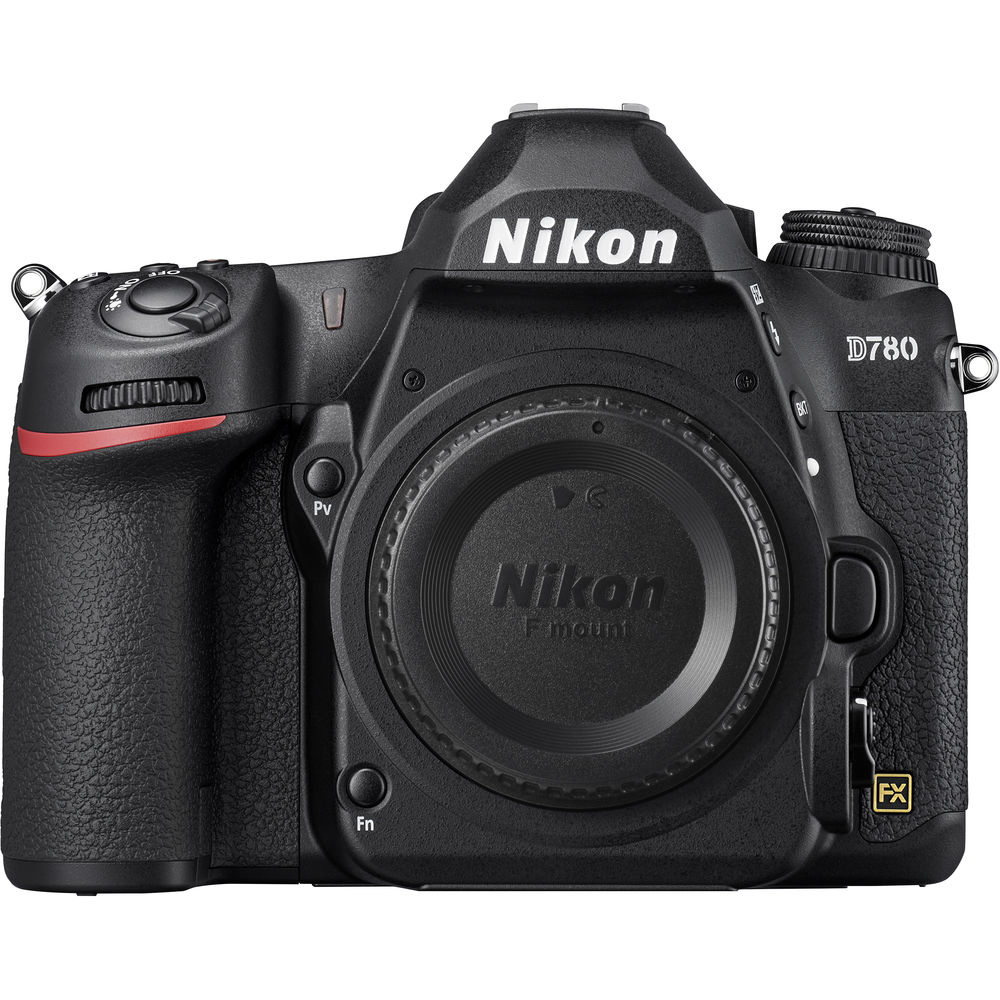
As I mention in the video, I don't actually like using this workflow. I prefer to control my DSLR manually, using the buttons and Live View screen. The only downside is that I have to go outside and look at my camera to see how things are going. However, I think a lot of people will enjoy the ASIAir workflow featured in this video.
Unfortunately, only Canon and Nikon cameras are currently supported. Apparently Sony charges a lot of money to use their SDK, while Canon and Nikon's SDKs are free.
One of the main reasons to use the ASIAir is the new SkyAtlas feature. This allows you to quickly find any nebula or galaxy, and line up the composition exactly how you want. You will need a Go-To mount for this feature to work properly though.
Another benefit of using the ASIAir workflow is that you can see your photos in real-time from your smartphone. Now you don't have to go outside, stop the interval, stop the guiding, turn on the playback, zoom into the photos, look for problems, fix the problem, turn on the guiding, restart the interval, etc... With the ASIAir, you can just keep an eye on your phone and as soon as you notice a problem you can head outside and fix it.
A Note on Cables
Not all cables are created equally. I've noticed that some USB cables work great with my Nikon D780, and others don't seem to work at all. Therefore, you'll want to try out as many cables as you have available. The USB cable that came with my Nikon D780 works fine, but it's only about 12 inches long. That means it could get snagged as the mount is rotating at night. I really need to keep a close eye on the cable anytime the mount moves (Polar Alignment, Go-To, etc...) If I had a longer USB cable, that would solve the problem.
I've also noticed that the camera can become unresponsive in the ASIAir App for no discernable reason. If you know your cable works, but the camera still doesn't seem to be working properly, turn off the camera. Wait a few seconds, then turn on the camera. The ASIAir app will give you some sort of message, just click Ok. Then go into the Camera Settings menu and select your DSLR again. The two should now be able to communicate.
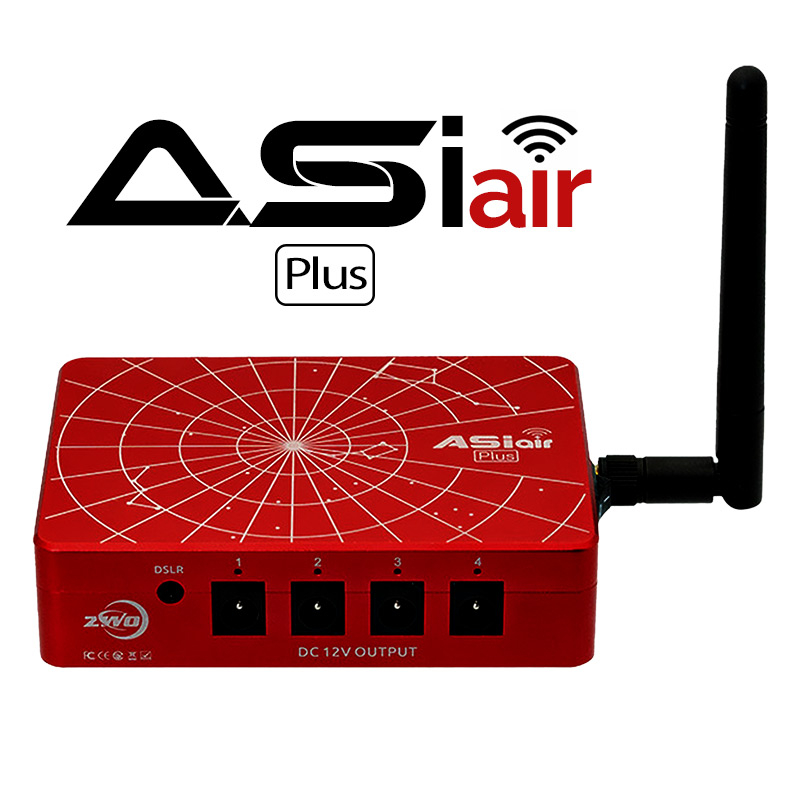
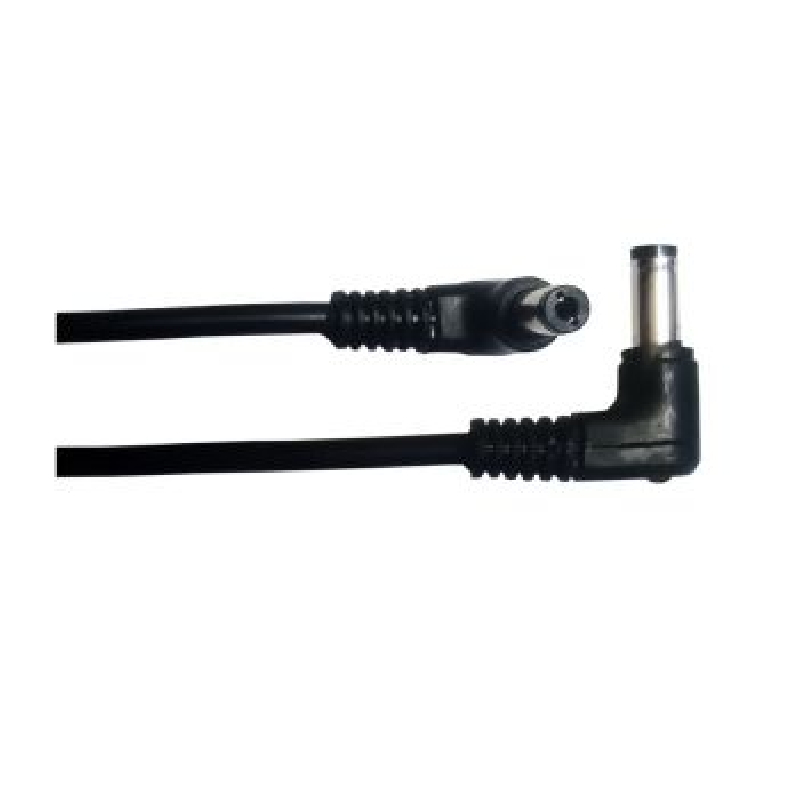
Featured Products For This Video
Shop for the products you need/found in this video
Comments
Comment on this video
Make a Donation
Support this channel with a recurring or one-time donation


Crashmc
Nov 10, 2022